

Are you ready to unlock a world full of inspiration, ideas, and endless creativity? How to Start a Pinterest Account is easier than you think, and it can open doors to everything from home décor tips to business marketing strategies.
Whether you want to organize your favorite recipes, plan a dream wedding, or grow your brand online, Pinterest is the perfect platform to make it happen. In this guide, you’ll discover simple, step-by-step instructions to create your very own Pinterest account quickly and confidently.
Keep reading, and soon you’ll be pinning your way to a more organized, inspired, and connected online experience.

Account Types
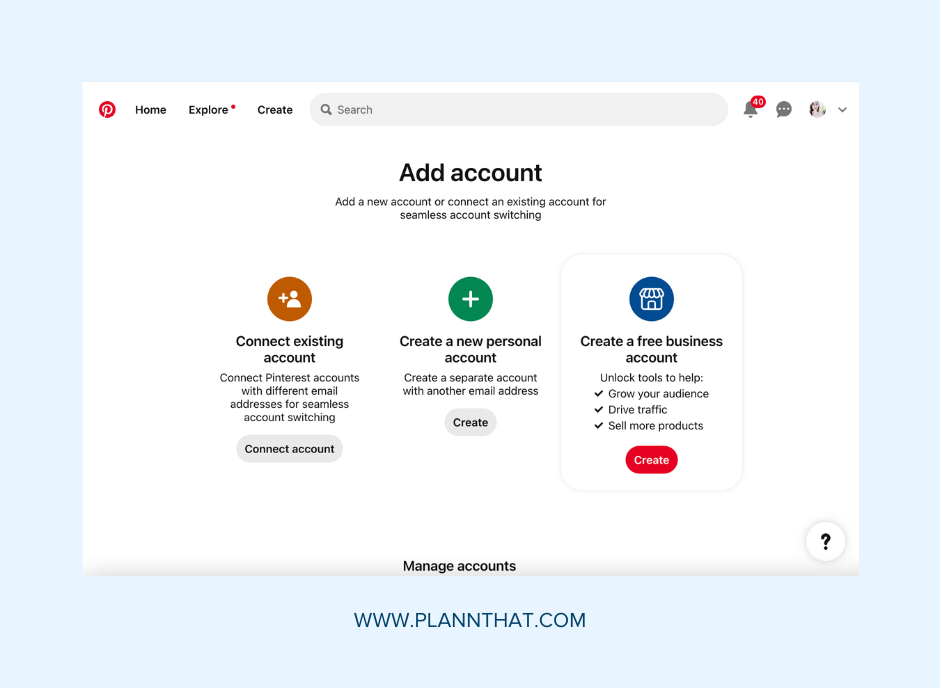
Choosing the right Pinterest account type is important before you start. Pinterest offers two main account types: personal and business. Each serves different needs and provides unique features. Understanding these options helps you pick the best one for your goals.
Personal Account Benefits
A personal account is free and easy to create. It allows you to browse, save Pins, and organize boards. This account works well for casual users who want to discover ideas or plan projects. You can follow other users and see their Pins in your feed. Ads appear, but they do not cost anything to use Pinterest.
Business Account Features
A business account is also free to start. It offers extra tools like analytics and audience insights. These features help track how Pins perform and who views them. You get access to Pinterest Ads to promote your content. This account suits brands, bloggers, and marketers who want to grow an audience.
Optional Paid Tools
Pinterest itself does not charge for premium accounts or ad-free use. You pay only for ads you run on the platform. Some third-party tools offer paid subscriptions to improve Pinterest marketing. These tools can help with scheduling Pins, creating content, or analyzing trends. Using them is optional and depends on your needs.
Setting Up Your Profile
Setting up your Pinterest profile is the first step to sharing and discovering ideas. A well-set profile helps others find you and understand what you offer. It also makes your account look trustworthy and complete.
This section guides you through the simple steps of setting up your profile. You will learn how to sign up, choose a username, and add important details. Each step is easy to follow, even for beginners.
Signing Up
Go to pinterest.com to start your signup process. You can sign up using your email address or connect with Google or Facebook. Enter your basic information, like age and language. Then create a strong password to protect your account. Click “Sign Up” to move forward.
Choosing A Username
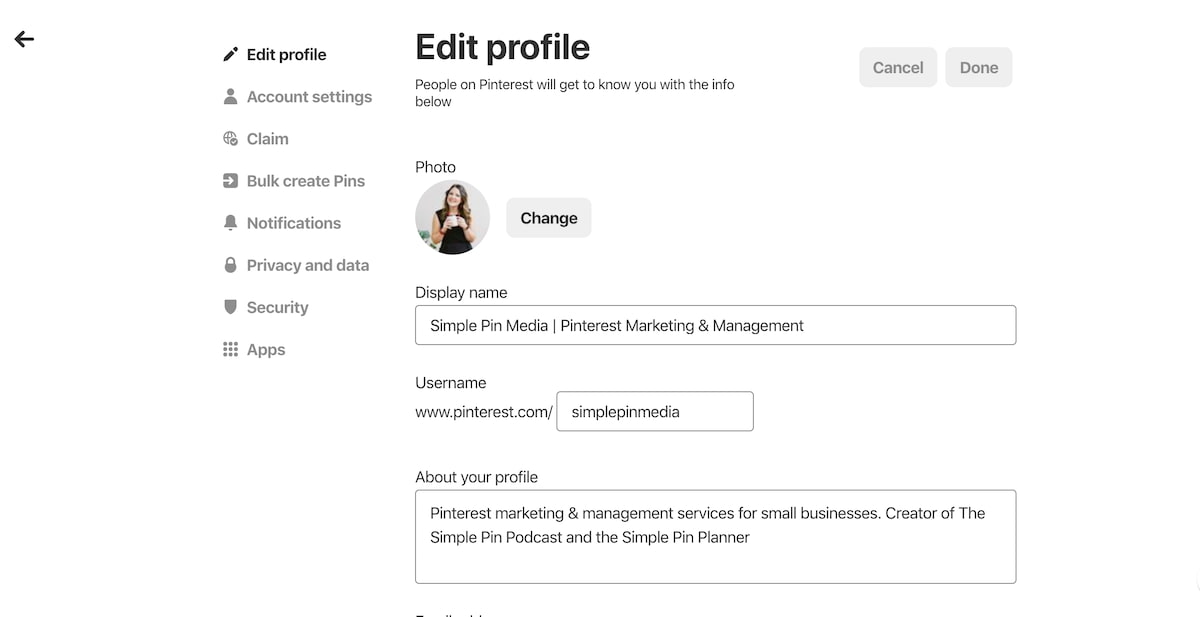
Your username is your identity on Pinterest. Pick a name that is simple and easy to remember. Use your real name or a business name if applicable. Avoid special characters or long names. This helps others find you easily in searches.
Adding Profile Details
Add a clear profile picture to make your account personal and inviting. Write a short bio that explains who you are or what your business does. Include keywords related to your interests or niche. Link your website or other social media accounts if you have them. This builds credibility and connects your online presence.
Creating Boards
Creating boards is a key step after setting up your Pinterest account. Boards help you organize your ideas and inspirations clearly. Each board holds pins related to a specific topic or interest.
Good board organization makes your profile neat and easy to explore. It also helps others find your pins quickly. Choosing the right themes and settings for your boards enhances your Pinterest experience.
Board Themes
Pick clear themes that match your interests or goals. Examples include recipes, travel, fashion, or home decor. Use simple names so others understand your boards at a glance. Focus each board on one topic to keep it organized.
Think about what you want to collect or share. Your themes should reflect your style or business niche. Changing or adding themes over time is easy if your interests grow or shift.
Organizing Pins
Save pins to the correct boards to keep things tidy. You can arrange pins inside a board by dragging them. This order shows first when visitors open the board.
Group similar pins together for better flow and easier browsing. Use sections inside boards for subcategories if you have many pins. This helps find specific pins faster.
Privacy Settings
Decide if your boards are public or secret. Public boards are visible to everyone on Pinterest. Secret boards are private and only you or invited people can see them.
Secret boards work well for private projects or gift ideas. You can change privacy settings anytime in the board’s edit options. Keep control over who sees your pins and boards.
Pinning Content
Pinning content is the core action on Pinterest. It helps you organize ideas and find inspiration. You create boards to collect your favorite Pins. Each Pin links to an image, article, or video that you want to save or share.
Understanding how to find, save, and upload Pins makes your Pinterest experience richer. This process lets you build a personalized collection of content. It also helps you connect with topics you love or want to explore.
Finding Pins
Search for Pins by typing keywords into the Pinterest search bar. Pinterest shows images, videos, and ideas related to your search. Explore categories like food, fashion, travel, or home decor.
Follow other users or boards to see their Pins in your feed. This keeps fresh content flowing based on your interests. Use filters to narrow down results by popularity, date, or type.
Saving Pins
To save a Pin, click the red “Save” button on the image. Choose a board where you want to store the Pin. Boards act like folders to keep your Pins organized by topic.
You can save Pins from other users or from your own searches. Saving Pins helps you revisit ideas later. It also lets you share interesting finds with your followers.
Uploading Your Own Pins
Upload your own Pins by clicking the “+” icon and selecting “Create Pin.” Add an image or video from your device. Write a clear title and description to explain your Pin.
Include a link if you want to direct users to a website. Choose the best board for your new Pin to keep your profile tidy. Uploading Pins lets you share your original content with others.
Using Pinterest On Different Devices
Pinterest works smoothly on many devices. You can use it on a desktop computer or a mobile phone. Each device offers a different experience. Knowing these differences helps you use Pinterest better. Both ways let you explore ideas, save Pins, and create boards easily.
Desktop Experience
Using Pinterest on a desktop gives you a wide view. The large screen shows many Pins at once. You can browse, search, and organize boards with ease. The drag-and-drop feature helps to move Pins quickly. You can also upload images directly from your computer.
The desktop site supports multiple tabs. This lets you work on different boards without losing place. It is perfect for detailed planning or research. Notifications appear clearly at the top. This keeps you updated on new followers or comments.
Mobile App Features
The Pinterest mobile app is designed for quick use on the go. It offers touch controls that feel natural on phones. The app sends push notifications for real-time updates. You can save Pins instantly while browsing other apps.
Mobile search includes voice and camera input. This helps find ideas using photos or spoken words. The app also supports video Pins and story pins. You can create boards and invite friends to collaborate easily.
Mobile devices allow you to scan QR codes to find Pins. The app works smoothly even with slower internet connections. It is perfect for quick inspiration and sharing ideas anytime.
Exploring Free Features
Pinterest offers many free features that help you explore and organize ideas. You can use these tools without paying a fee. They make the platform fun and easy to use for everyone.
These features include browsing, following others, and a smart search tool called Pinterest Lens. Each one helps you find and save content that fits your interests.
Browsing And Searching
Start by browsing Pinterest’s vast collection of Pins. You can search for topics using simple keywords. Pinterest shows related ideas and images quickly. This helps you discover new trends and inspiration.
Following Others
Following other users lets you see their Pins on your home feed. Choose people who share your interests. This keeps your feed fresh with ideas you like. You can follow friends, brands, or experts in any field.
Using Pinterest Lens
Pinterest Lens lets you search using photos instead of words. Take a picture or upload one to find similar Pins. This tool helps you find ideas based on real objects around you. It is handy for shopping or home decor ideas.
Optional Paid Features
Starting a Pinterest account is simple and free. However, Pinterest offers optional paid features. These features help businesses and creators reach more people. Investing in paid tools can grow your profile faster. Understanding these options helps you decide what fits your needs and budget.
Promoted Pins
Promoted Pins are paid ads that appear in user feeds. They look like regular Pins but reach a larger audience. You choose the target group based on interests and location. This increases the chance of engagement and traffic to your website. Promoted Pins help build brand awareness and sales.
Advertising Costs
Advertising costs on Pinterest depend on your budget and goals. You can set daily or lifetime limits for your ad campaigns. Pinterest charges you based on clicks, impressions, or conversions. The minimum spend is usually low, making ads accessible for small businesses. Monitoring your ad performance helps control costs effectively.
Third-party Marketing Tools
Several third-party tools support Pinterest marketing efforts. These tools offer scheduling, analytics, and design features. Some popular options include Tailwind and Canva. These services often require a monthly subscription fee. Using them can save time and improve your Pinterest strategy.
Safety And Privacy Tips
Starting a Pinterest account is exciting, but protecting your safety and privacy is important. Safeguarding your information helps you enjoy Pinterest with peace of mind. Follow these tips to keep your account secure and your personal data safe.
Using Real Names
Use your real name or a close variation on Pinterest. Real names build trust and make your account more authentic. Avoid fake or misleading names that can confuse others. This practice helps Pinterest maintain a safe community.
Managing Privacy Settings
Review your privacy settings right after creating your account. Control who can see your boards and pins. Set boards to secret if you want to keep ideas private. Limit data sharing to protect your personal details from unwanted access.
Teen Safety Options
Pinterest offers special safety features for teens under 18. These include restricted search results and limited messaging options. Parents and guardians can also guide teens on safe Pinterest use. These features create a safer online space for younger users.
Common Questions
Starting a Pinterest account raises many common questions. Understanding these helps you use Pinterest better. Below are clear answers to some frequent queries.
Is Pinterest Free?
Yes, Pinterest is free to use. You can browse, save pins, and create boards without paying. Both personal and business accounts have no setup fee. Ads appear on the platform, but you do not pay to remove them.
How Much Do Ads Cost?
Creating ads on Pinterest costs money, but you control the budget. You set daily or lifetime spending limits. Costs depend on your goals and audience size. You pay only when people interact with your ads.
Switching Between Account Types
You can switch between personal and business accounts anytime. Business accounts offer extra tools like analytics and ad management. Changing your account type is simple and does not affect your saved content.
Frequently Asked Questions
How Much Does It Cost To Have A Pinterest Account?
Creating a Pinterest account is free for personal and business use. Costs apply only if you run paid ads or use external marketing tools.
What Do You Need To Create A Pinterest Account?
To create a Pinterest account, you need an email address or a Google/Facebook account. Then, visit pinterest. com to sign up. Choose a username, create a password, and provide basic profile information. The process is free and quick, allowing immediate access to Pinterest features.
Do You Have To Use Your Real Name On Pinterest?
You don’t have to use your real name on Pinterest. You can choose any name for privacy or branding.
Is Pinterest Free?
Pinterest is free to use for personal and business accounts. You can browse, save pins, and create boards without cost. Charges apply only for optional ads or marketing tools.
Conclusion
Starting a Pinterest account takes just a few simple steps. Create your profile with basic information and choose your interests. Pin images and ideas that inspire you. Explore boards to find new content every day. Use Pinterest for personal fun or business growth.
Remember, the platform is free and easy to use. Keep pinning regularly to enjoy all its benefits. Begin your Pinterest journey today and watch your ideas come alive.