

Are you wondering how to make your Pinterest account public and unlock the full potential of your pins? Whether you want to share your creativity, grow your audience, or simply let others discover your ideas, making your profile public is the first step.
In this guide, you’ll learn exactly how to change your Pinterest settings so your account and boards become visible to everyone. It’s easier than you think, and by the end, you’ll be ready to connect with millions of users and boost your Pinterest presence.
Keep reading to find out how you can do this quickly and safely!
Public Vs Private Pinterest Accounts
Pinterest users can choose between public and private accounts. Each type controls who can see your pins and profile. Deciding which setting suits you depends on your goals and privacy preferences.
Public accounts let anyone view your pins and boards. Private accounts limit visibility to only you or invited collaborators. Understanding the differences helps you manage your content effectively.
Differences In Visibility
Public Pinterest accounts show your profile, pins, and boards to everyone. Anyone can find you through Pinterest search or Google. Private accounts hide your profile and pins from others. Only you and collaborators see your private boards. This setting keeps your content hidden and secure.
Benefits Of A Public Account
Public accounts increase your reach and engagement. More people can discover your ideas and follow you. This helps grow your audience and influence. Public profiles can drive traffic to your website or blog. They also improve your chances of showing up in search results. Sharing publicly helps build your Pinterest community.

Steps To Make a Pinterest Account Public
Making your Pinterest account public helps others discover your pins and boards easily. It allows your profile and pins to be visible both on Pinterest and search engines. Follow these clear steps to change your account settings and share your creativity with a larger audience.
Accessing Profile Settings
First, open the Pinterest app or website. Tap your profile picture in the bottom-right corner to go to your profile. Next, find the gear icon or “Settings” option and click it. This opens your account settings, where you control privacy and other options.
Adjusting Privacy And Data Options
In the settings menu, look for “Privacy and data.” Click it to see all privacy-related controls. This section includes options to manage who can see your profile and pins. Adjusting these settings is key to making your account public.
Disabling Private Profile Toggle
Within the privacy settings, find the “Private profile” toggle. Switch it off to make your profile visible to everyone. This step removes restrictions and allows others to view your boards and pins freely.
Turning Off Search Privacy
Finally, locate the “Search privacy” option. Turn this off to let search engines like Google index your profile. This makes your Pinterest account easier to find outside the platform. Your pins and boards can then reach more people.
Making Boards Public
Making your Pinterest boards public lets others see and follow your collections. Public boards increase your reach and engagement on the platform. You control which boards stay private or become visible to everyone. Adjusting board privacy is simple and quick.
Checking Board Privacy Status
Open Pinterest and go to your profile. Scroll through your boards to review their settings. Each board shows if it is public or secret. Secret boards have a lock icon, while public boards do not. Confirm the status before making any changes.
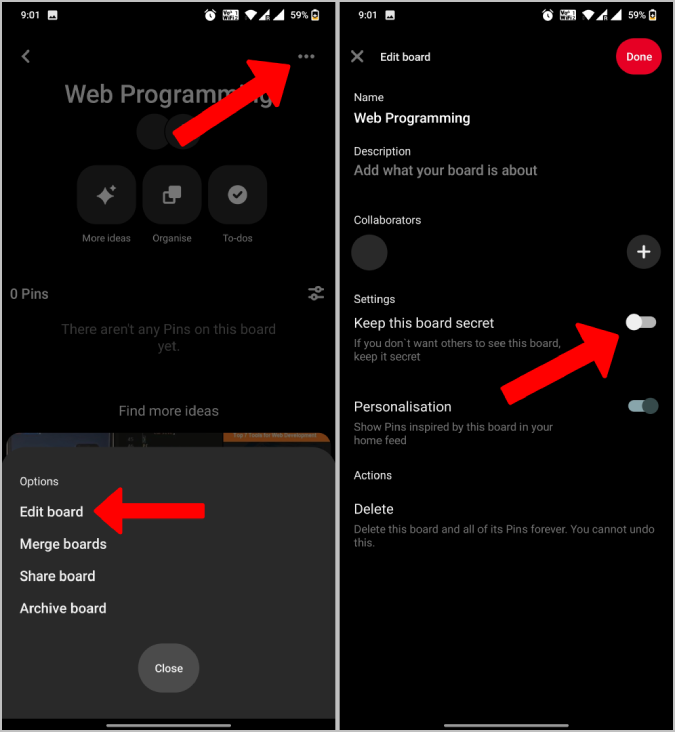
Changing Secret Boards To Public
Click on the secret board you want to make public. Select the pencil icon to edit the board. Find the “Keep this board secret” option. Toggle off the secret setting to make the board public. Save your changes to update the board’s visibility.
Public Account Setup On Mobile App
Setting up a public Pinterest account using the mobile app is simple and quick. It allows others to see your pins and boards easily. Making your profile public increases your reach and helps you connect with more people.
This section guides you through the steps to make your Pinterest account visible to everyone on mobile devices.
Navigating Profile On Mobile
First, open the Pinterest app on your phone. Tap your profile picture at the bottom-right corner to open your profile page. Next, tap the gear icon at the top-right to access Settings. From there, find and select the “Privacy and data” option. This is where you control who sees your content.
Saving Privacy Changes Automatically
Once you toggle off the “Private profile” option, your account becomes public immediately. Also, turn off “Search privacy” to let search engines find your profile. Pinterest saves these changes automatically. There is no need to press a save button. Your new settings take effect right away.
Business Accounts And Public Visibility
Business accounts on Pinterest offer a powerful way to showcase your brand, products, or services to a wide audience. These accounts are designed to maximize public visibility, helping your content reach more people. Understanding how business accounts handle privacy can help you ensure your profile is seen by potential customers and followers.
Default Public Settings For Business Accounts
Business accounts on Pinterest are public by default. This means anyone can view your profile and pins without restrictions. Your boards, pins, and activity are all visible to users and search engines. This open visibility supports brand growth and drives traffic to your website or shop. You do not need to adjust privacy settings to make your business account public. However, you can still control individual board privacy if needed.
Converting Personal Account To Business
Switching from a personal to a business account is simple and free. Before converting, check that your personal account is not private. Private accounts keep your content hidden, which can limit your reach after conversion. To convert, go to your account settings, find the option to switch to a business account, and follow the prompts. Once converted, your profile becomes public automatically, helping you connect with a larger audience.

Search Engine Discoverability
Search engine discoverability helps your Pinterest profile reach more people outside Pinterest. When your account is public, search engines like Google can index your pins and profile. This increases your visibility on the web. More viewers can find your ideas, boards, and content through search results.
Making your Pinterest account public improves your chances of being found by a wider audience. It connects your pins to relevant searches on the internet. This can bring more traffic to your profile and boost your online presence.
Enabling Search Privacy Settings
To make your Pinterest profile visible to search engines, adjust your privacy settings. Go to your profile and open the Settings menu. Find the “Privacy and data” section. Turn off the “Search privacy” option. This allows search engines to index your profile and pins.
Disabling search privacy means your content appears in external search results. Your pins and boards become accessible beyond Pinterest users. This step is crucial for better discoverability on Google and other search engines.
Impact On External Search Results
With search privacy off, your Pinterest profile shows up in Google and similar platforms. People can find your pins by typing related keywords in search engines. This drives organic traffic to your profile without extra effort.
Public accounts benefit from increased exposure and more followers. Your ideas can reach people who do not use Pinterest regularly. This visibility helps grow your audience and strengthens your online brand.
Common Issues And Troubleshooting
Making your Pinterest account public can sometimes lead to unexpected issues. Common problems often block your profile from being visible to others. Troubleshooting these problems quickly helps you share your pins and boards without hassle.
This section covers frequent issues and how to fix them. Understanding these can save time and improve your Pinterest experience.
Locked Accounts And Privacy Restrictions
Accounts can get locked due to suspicious activity or rule violations. Locked accounts limit your profile visibility automatically. You must verify your identity to unlock the account. Follow Pinterest’s instructions carefully to regain access.
Privacy settings also affect who can see your profile. If your account is set to private, others cannot view your pins or boards. Check your privacy options in settings and toggle off “Private profile” to make your account public.
Safe Mode And Its Effects On Visibility
Safe Mode filters out sensitive content and restricts some pins from appearing. It can reduce your profile’s visibility to certain users. This mode is on by default for some accounts, especially for younger users.
Turning off Safe Mode allows more content to be seen by a wider audience. Go to your account settings, find Safe Mode, and toggle it off if you want full visibility. Keep in mind, this may show more varied content on your feed.
Age Restrictions And Privacy
Understanding age restrictions and privacy is important when making your Pinterest account public. Pinterest protects younger users by limiting who can see their content. This keeps the platform safer for teens. Knowing these rules helps you manage your account properly.
Minimum Age For Public Accounts
Pinterest requires users to be at least 13 years old. Users under 16 have extra privacy protections. Only users 16 or older can make their accounts fully public. This rule helps protect younger users from unwanted exposure online.
If you are under 16, your profile will stay private by default. This means only approved followers can see your pins. You cannot change this setting until you reach 16 years of age.
Privacy Settings For Teens
Teens between 13 and 15 have limited privacy options. Their accounts stay private automatically. Parents and guardians can also use Family Accounts to manage safety settings.
Once you turn 16, you can choose to make your profile public. You can also control who sees your boards and pins. Check your privacy settings regularly to keep your account safe.
Frequently Asked Questions
Why Is My Pinterest Account Private?
Your Pinterest account is private because the “Private profile” setting is enabled in your privacy settings. This restricts visibility to only you and approved followers. To make it public, disable this option in your profile’s privacy settings, allowing others to view and search your content.
At What Age Does Your Pinterest Account Become Public?
Pinterest accounts become public automatically when users turn 16 years old or older. Users under 16 have private accounts by default.
How Do You Unprivate Your Pinterest Account When It’s Locked?
Open the Pinterest app and log in. Tap profile picture, then gear icon for Settings. Select “Privacy and data,” toggle off “Private profile. ” Your account becomes public immediately.
How Do I Turn Off Safe Mode On Pinterest?
Open Pinterest, go to Profile, tap Settings (gear icon). Select “Privacy and data” and toggle off Safe Mode to disable it.
Conclusion
Making your Pinterest account public helps others discover your ideas easily. Follow the simple steps to adjust your privacy settings in the app. Remember to check each board’s privacy settings to share what you want. Public accounts increase your reach and allow more people to see your pins.
Keep your content fresh and organized to attract more followers. Stay safe by reviewing privacy options regularly. Making your Pinterest public is easy and opens new opportunities to connect. Start sharing your creativity with the world today.